Showing posts with label AppSence. Show all posts

Monday, 20 April 2015

AppSence how to configure and install Application Manager Console

Application Manager Console Installation

1. Start the setup and click next on welcome screen

clip_image001

2. Accept the license agreement and click next

clip_image002

3. Use the default installation directory and click next

clip_image003

4. Click on install button

clip_image004

5. Click finish to complete the installation.

clip_image005

How to configure AppSence Management Server Configuration


How to configure AppSence  Management Server Configuration

1.       Launch the Management server configuration tool

clip_image001

2.       Click next o welcome screen

clip_image002


3.       Click next after verifying the prerequisites

clip_image003


4.       Select default website and click next


clip_image004

5.       Use windows authentication method and click next


clip_image005


6.       Enter database server name and instance name .


clip_image006


7.       Enter the user name and password for the services to communicate with database.


clip_image007


8.       Verify the summary and click next


clip_image008

 9.       Click on Finish to complete the configuration.


clip_image009


How to configure AppSence Personalization Server Configuration

Step by step configuration for AppSence Personalization Server Configuration

1. Launch Personalization server Configuration Tool

clip_image001

2. Click next welcome screen

clip_image002

3. Click next after verifying the prerequisites

clip_image003

4. Select default website and click next

clip_image004

5. Enter database server name, instance name and select windows authentication then Click next

clip_image005

6. Enter the user name and password for the services to communicate with database.

clip_image006

7. Verify the summary and click next

clip_image007

8. Click on Finish to complete the configuration.

clip_image008

AppSense Installation and Configuration Step by Step

Appsense Installation and Configuration

1.       Start installation and Click next on welcome page

clip_image001 

2.       Enter user information and click next

clip_image003


3.       Accept License agreement and click next.

clip_image004

4.       Enter license key and validation code then click next

clip_image006


5.       Select Enterprise installation type and click next

clip_image007

6.       Select Management Center and Personalization Server then click next

clip_image008


7.       Select remote SQL instance and click next

clip_image009

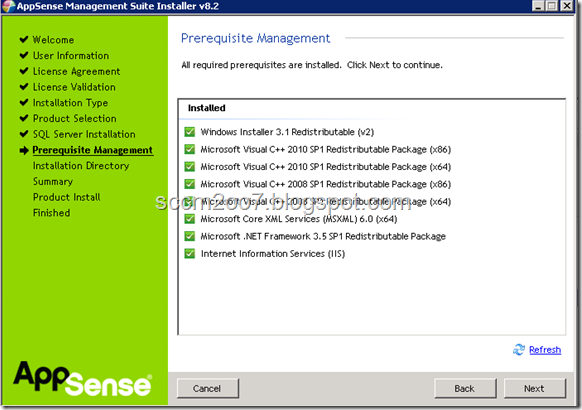
8.       Install the prerequisites and click next

clip_image010

clip_image011

9.       Use the default installation directory and click next

clip_image012


10.   Verify the summary and click on install button

clip_image013

clip_image014


11.   Click finish to complete the installation.

clip_image015